Local recognition
OCR reads text on your computer with Windows OCR, Apple Vision, Tesseract or optional engines.
 Xynapse.
SMALL APP. A WORLD WITHOUT LANGUAGE BARRIERS.
A game, a video, a stubborn PDF. Select the text on your screen and get the translation right where you need it.
No account. No ads. Open source.
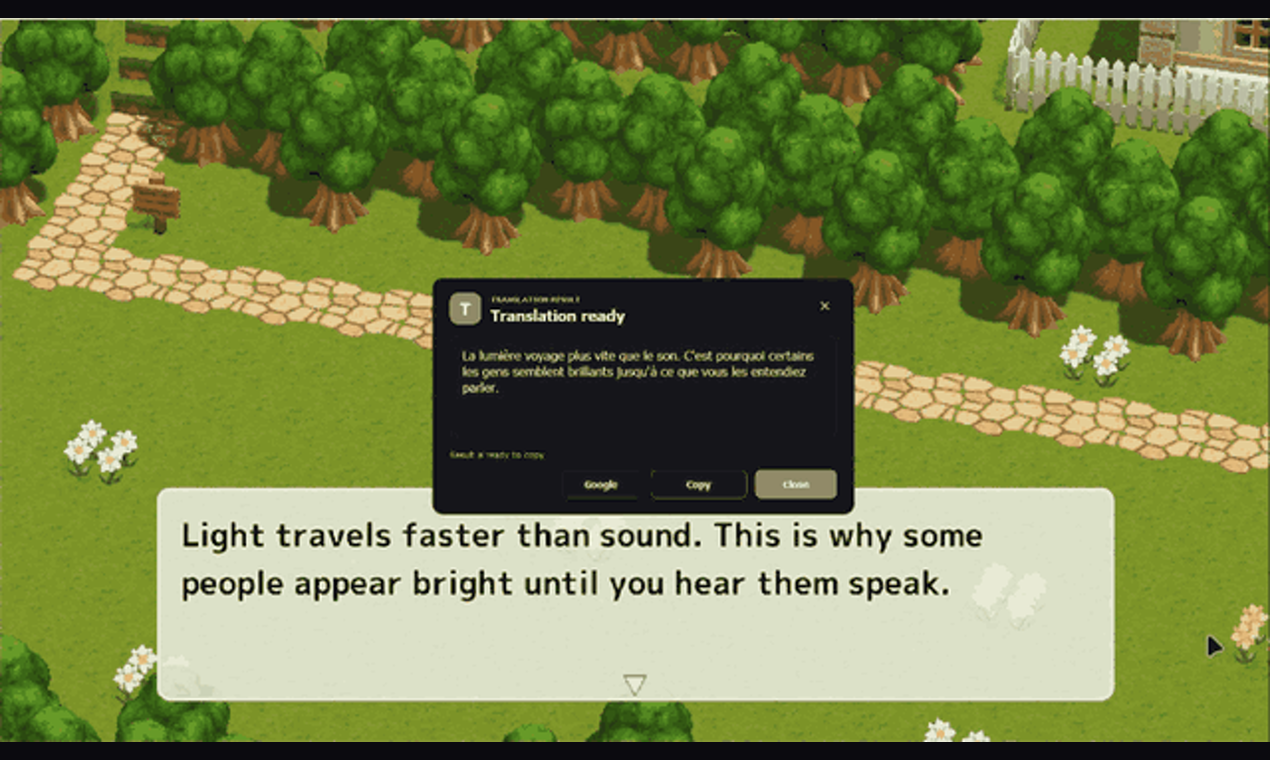
Play a short recording from the app.
SEE IT. SELECT IT. UNDERSTAND IT.
No copying screenshots between apps. Pick the action and keep going.
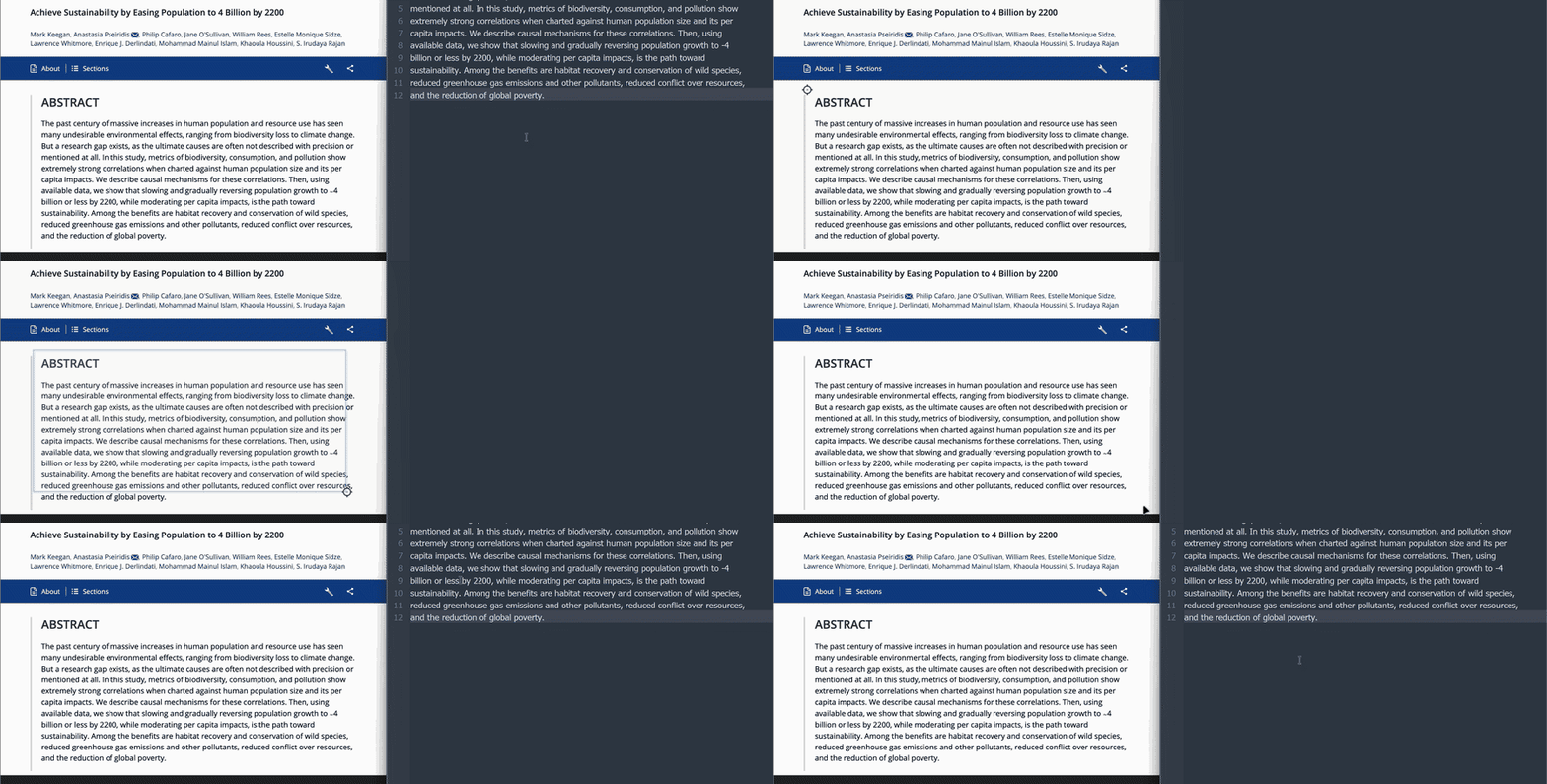
Select a region and translate what is on screen, even when the text cannot be selected.
Ctrl + Alt + TPlay a short recording from the app.
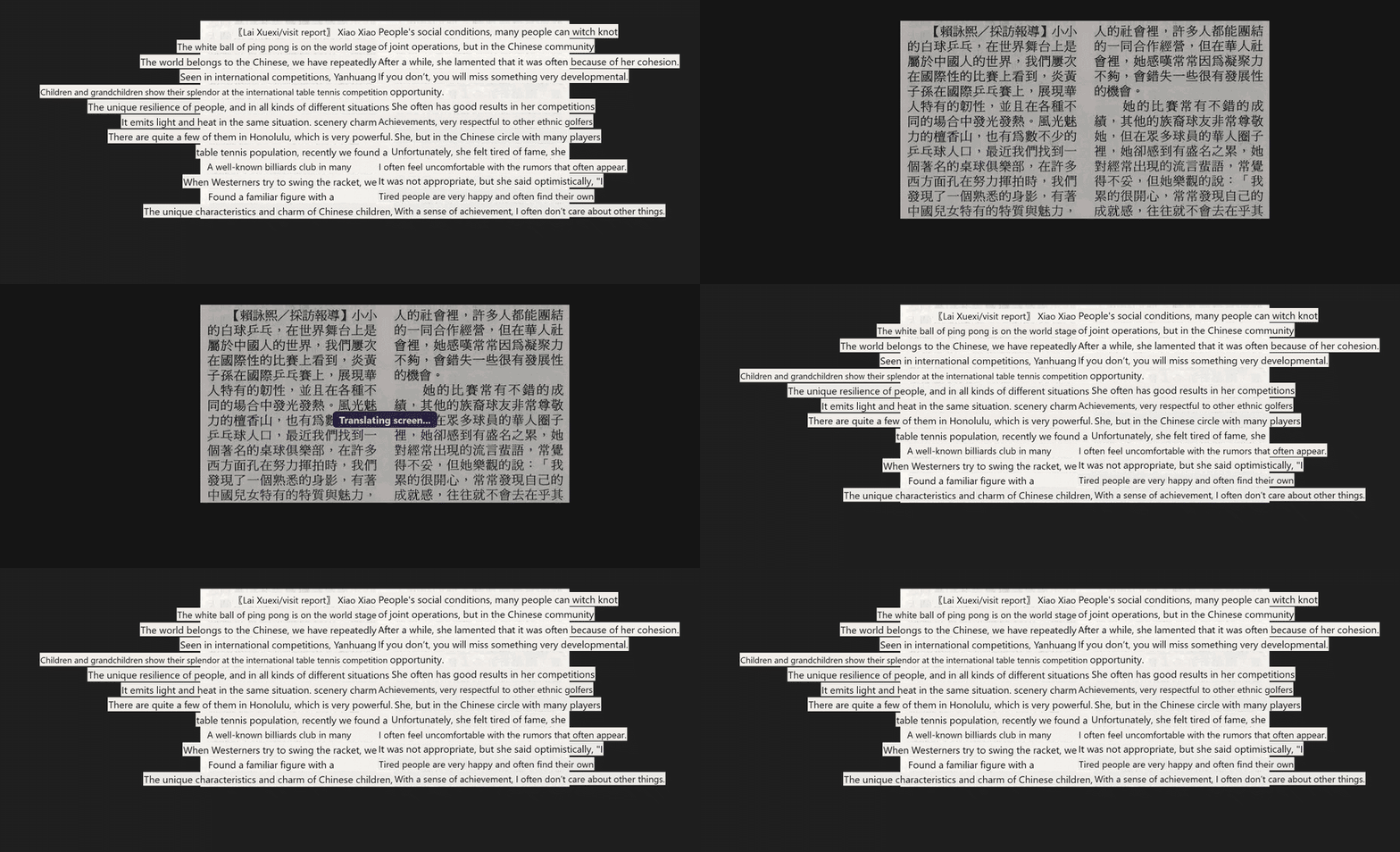
Grab text from a picture, a scan or an app. OCR puts the recognized text straight on your clipboard.
Ctrl + Alt + CPlay a short recording from the app.
Place the translation over the visible text. Right-click to close the overlay.
Ctrl + Alt + FPlay a short recording from the app.
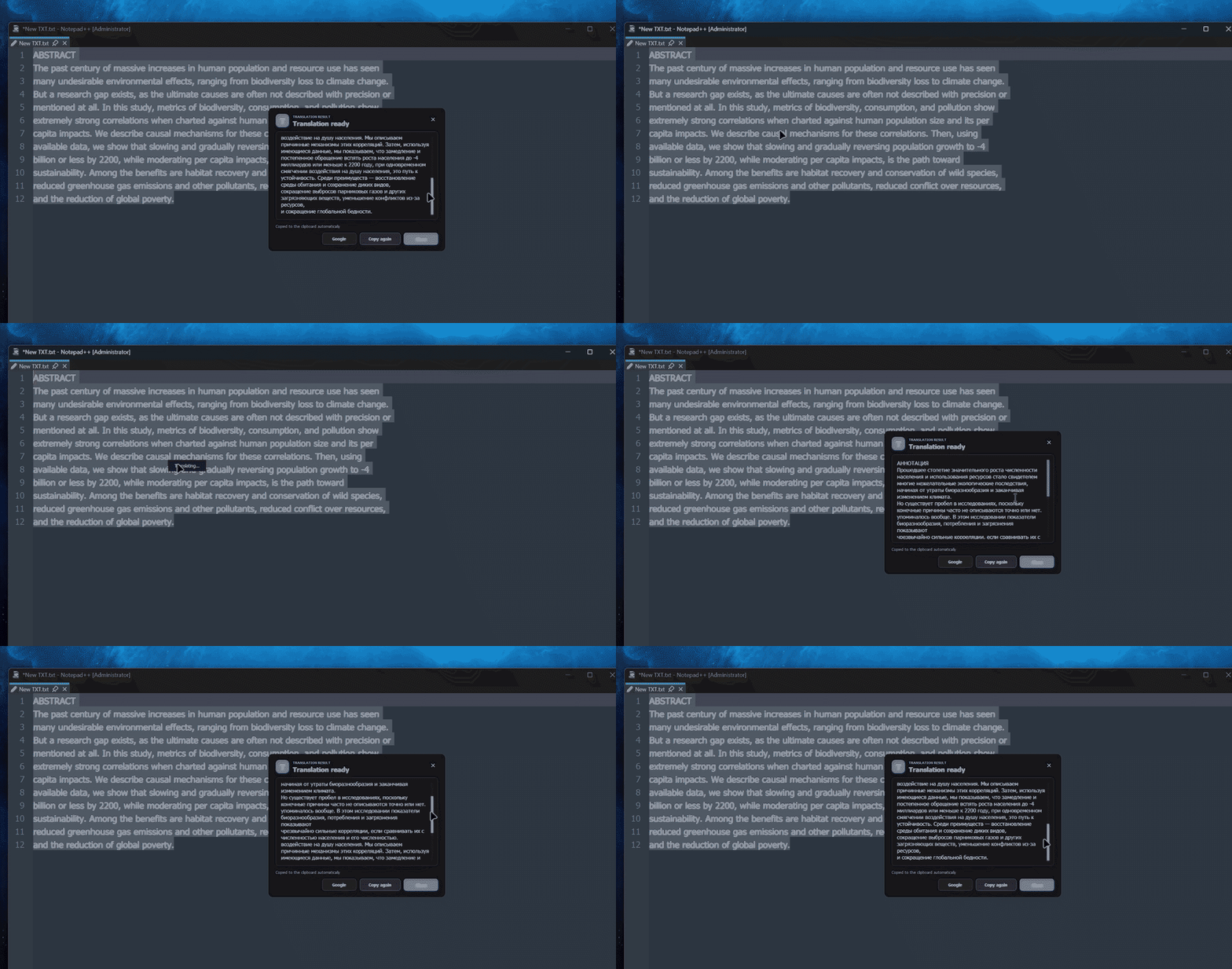
Highlight text in an app and translate it. You can also replace the selection with its translation.
Ctrl + Alt + QPlay a short recording from the app.
TEXT CHANGES. TRANSLATION FOLLOWS.
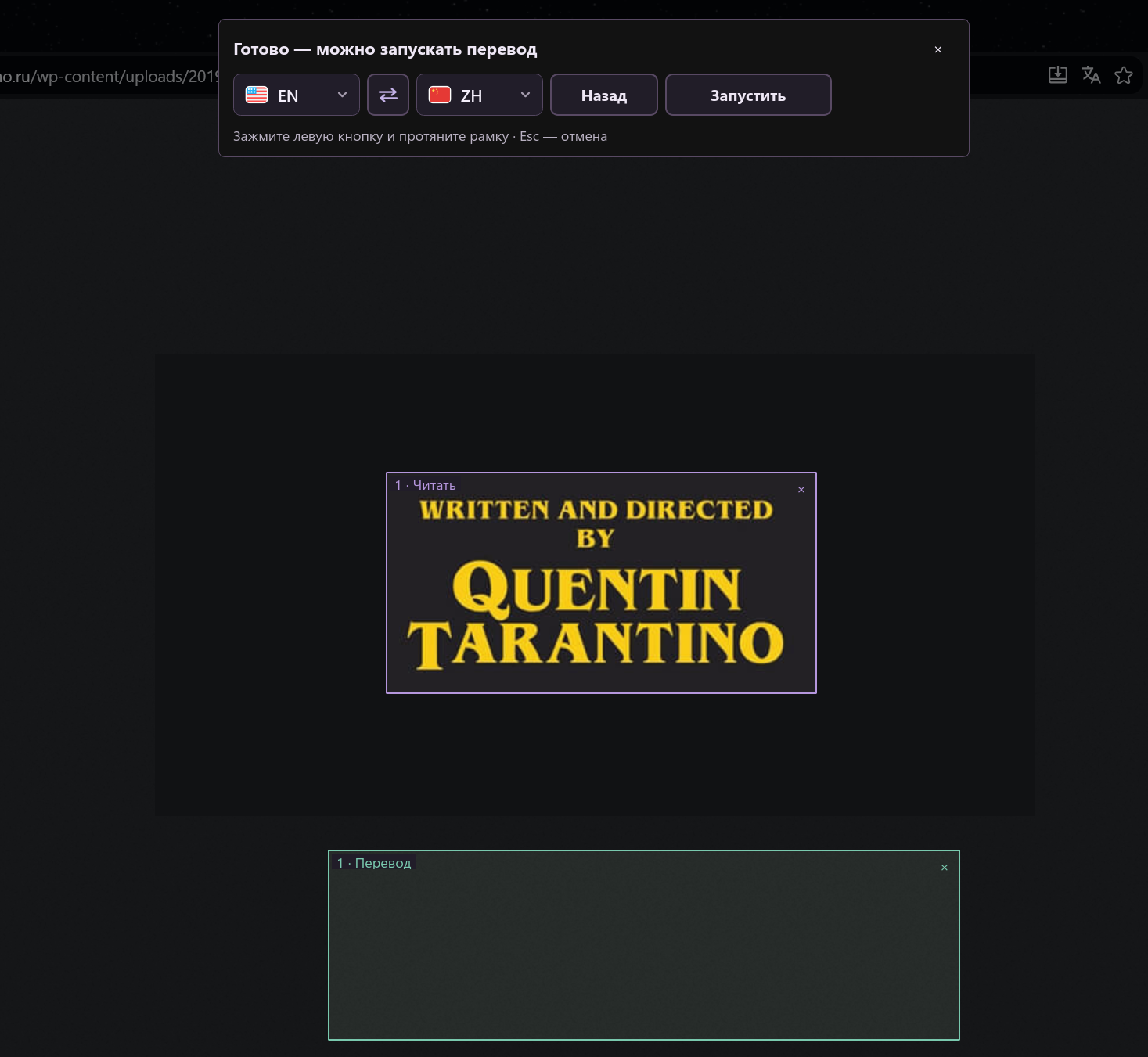
Mark the regions you want to read. Dynamic translation follows changing text and displays the result over the original or in a separate area.
Ctrl + Alt + GPurple: source text. Green: a separate translation area.
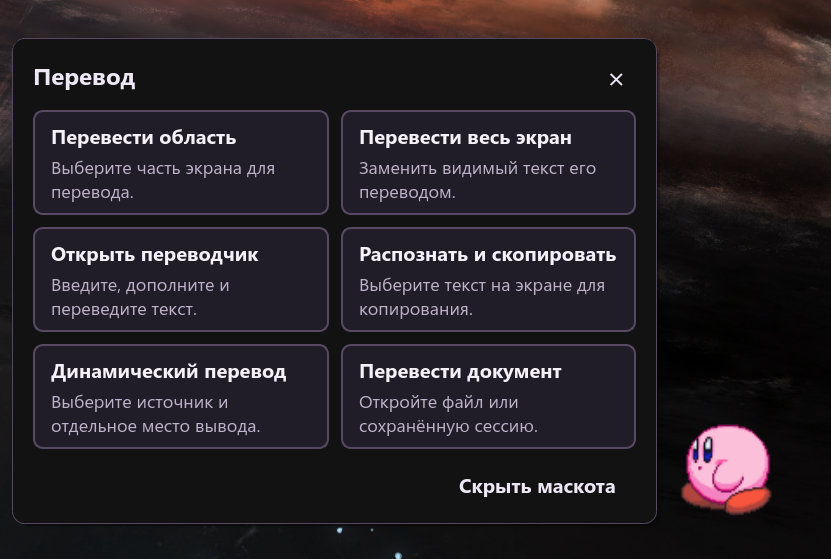

MEET YOUR DESKTOP COMPANION
Not a hotkey person? Click the little companion to translate, copy text or open a document. All the main actions are one click away.
Light or dark theme. Always optional.
YOUR TEXT. YOUR CHOICE.
OCR reads text on your computer with Windows OCR, Apple Vision, Tesseract or optional engines.
Use an online provider, or download Argos Translate / Hy-MT models for offline translation.
Online providers receive the text you translate. With an offline engine, recognition and translation stay on your device.
READY WHEN YOU ARE
Choose your system. The app is free, and Python is already included.
Current release v1.8.1Windows 10 / 11 · x64
Setup guidemacOS 13.4 or later
Setup guideLinux · x86_64
Make the AppImage executable before opening.
Windows and Mac builds currently use a self-signed jabrailkhalil certificate. A system warning may appear on first launch; the Mac app is not notarized by Apple.
All release files & checksumsFirst launch on Windows and Mac, step by step.
Current builds use the self-signed jabrailkhalil identity. It is not a publicly trusted Windows certificate or an Apple Developer ID; the Mac app is not notarized. You do not need to install the author's certificate or sign the app yourself.
Download from this site or jabrailkhalil/clickntranslate on GitHub. Run the installer, or extract the entire Portable ZIP into its own folder and open ClicknTranslate.exe. Keep the app folder beside it. Python is included.
For the expected official file that you trust, choose More info → Run anyway in the Windows protected your PC dialog, if available. This reputation warning is different from an antivirus detection.
Open Windows Security → Virus & threat protection → Protection history. Check the detected file's path and threat name. Update security intelligence and scan again. Only if you have verified the official file and are confident it is a false positive, choose Restore. If Defender detects it again, open that event and choose Allow on device. These actions can require administrator approval.
Smart App Control or an organisation's policy may prevent an exception. Contact your administrator or report the block to the project. Keep antivirus protection enabled; do not exclude Downloads, a whole drive or all applications.
A self-signed certificate or a matching checksum does not prove that a malware alert is false. Report recurring detections with the app version, filename, SHA-256 and exact threat name so the affected build can be investigated.
In Apple menu → About This Mac, check the chip or processor. Choose Apple Silicon for M1 and newer, or Intel for Intel Macs. Open the DMG and drag ClicknTranslate.app into Applications. Launch that copy, not the copy inside the DMG.
If macOS says the developer cannot be verified or Apple cannot check the app, dismiss the warning with Done or Cancel. This attempt makes the approval control available in Settings.
Open System Settings → Privacy & Security, scroll to Security and choose Open Anyway for ClicknTranslate. Authenticate if asked, then confirm Open in the next warning. Only approve the official download you trust.
After the welcome screen, use Enable beside Screen Recording in the app's Mac setup dialog. In Privacy & Security → Screen Recording (or Screen & System Audio Recording), enable ClicknTranslate. This allows OCR to read the screen. If needed, use + to select /Applications/ClicknTranslate.app; otherwise trigger a screen capture to request access.
Use Enable beside Accessibility, or open Privacy & Security → Accessibility. Enable the same installed ClicknTranslate.app so the app can copy and replace text in other applications. This is a separate permission from screen recording.
Accept Quit & Reopen if macOS offers it. Otherwise choose Quit from the app's menu-bar icon, then reopen it from Applications. Closing only the window can leave it running. Return to the setup dialog and click Check again → Continue.
An old copy can remain in the permission list after replacement. If access still fails, quit the app, remove only its outdated entry with − where available, then add the copy in Applications with + and enable it. Do not remove permissions for other apps.
If macOS says the app is damaged or will damage your computer, do not treat that as an unidentified-developer warning. Download it again from the official release, compare its checksum and report the exact message. This guide does not require disabling Gatekeeper, clearing quarantine in Terminal or re-signing the app.
Compare the downloaded file's SHA-256 with the checksum for that exact file and version in the official release's verification archive or .sha256 file. A match checks file integrity, not antivirus approval. Replace the example path below with your downloaded installer or DMG.
Official downloads and checksumsWindows · PowerShell
Get-FileHash -LiteralPath "C:\path\to\installer.exe" -Algorithm SHA256macOS · Terminal
shasum -a 256 "/path/to/Click-n-Translate.dmg"Choose the source and target languages, then click the companion → Translate area and draw a box around text. Or press Ctrl + Alt + T on Windows, Command + Option + T on Mac. Enable the companion in Settings if it is hidden. Online translation needs internet; offline translation needs language models downloaded beforehand.
FAQ
Yes. Download the recognition languages and an Argos Translate or Hy-MT model first. Online translation providers still need an internet connection.
On Windows, use the Update button in the app. On Mac and Linux, download the new DMG or AppImage and replace the app, keeping your user data.
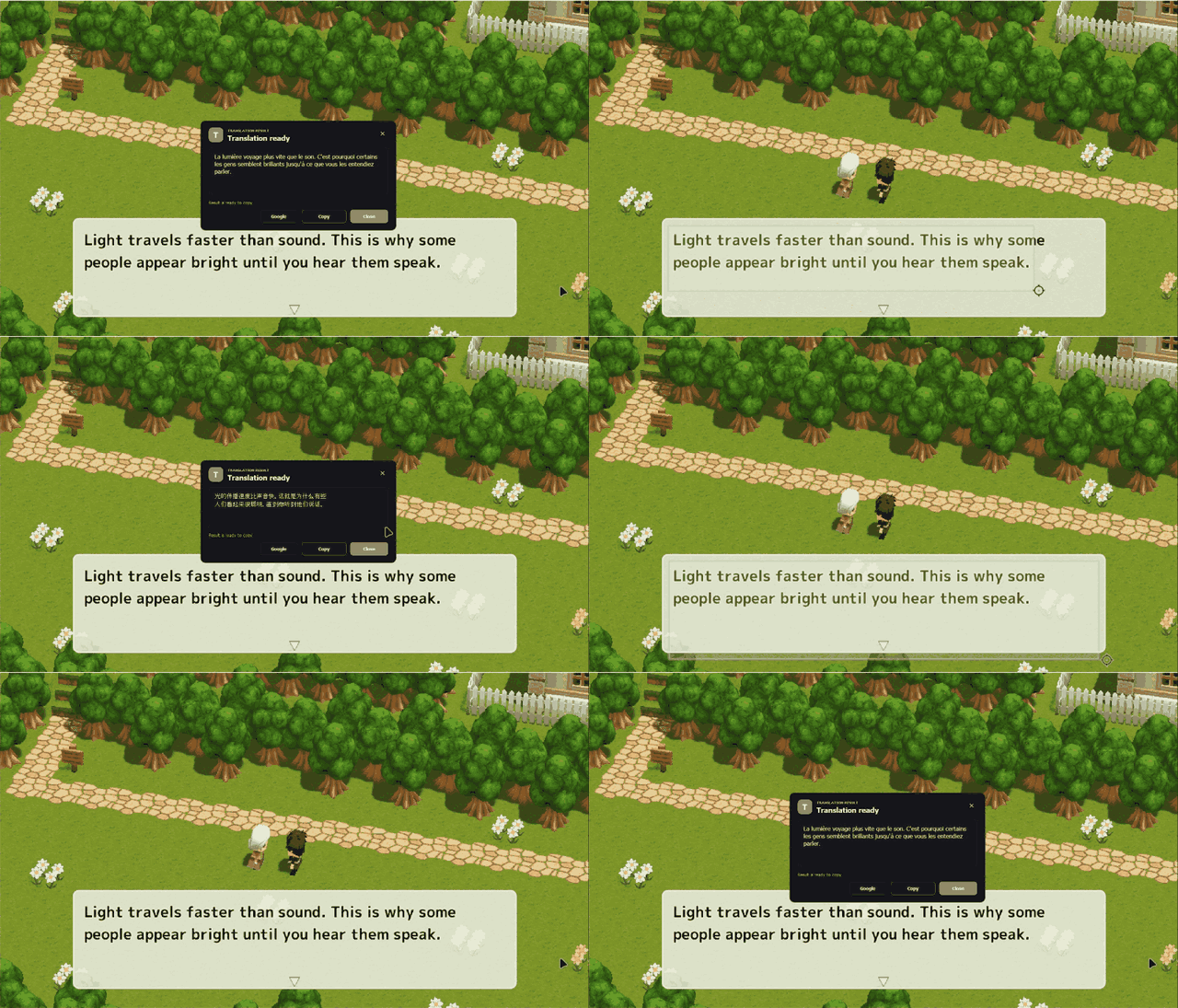
It can read visible text in games and videos. Accuracy depends on the font and image quality. Borderless or windowed mode may be needed; capture restrictions can prevent access.
Yes, in Settings. On Mac, use Command instead of Ctrl and Option instead of Alt. On Linux, configure the shortcuts in your desktop settings. The companion also gives you access to the actions.
Open TXT, Markdown, DOCX, PDF, HTML or RTF files. On Mac, the app guides you to Screen Recording and Accessibility permissions. See the setup guides beside the downloads.
Already 3,000+ downloads. If the app helps you, a GitHub star or a hello in Telegram means a lot.